
What does the Jumpshare video viewer have to offer?
An overview of the primary features of the Jumpshare video viewer.
Jumpshare functions as an all-in-one screen recording and screen capture software. Whenever you record using our desktop app, Chrome extension, or web recorder, your file automatically uploads to the cloud and opens instantly in our interactive file viewer.
The player automatically adapts to your recording enabling full-screen viewing, up to 200% zoom, and playback speeds from 0.5x to 2.5x, while seamlessly displaying AI-generated summaries, structured chapters, and advanced collaboration tools at a glance.
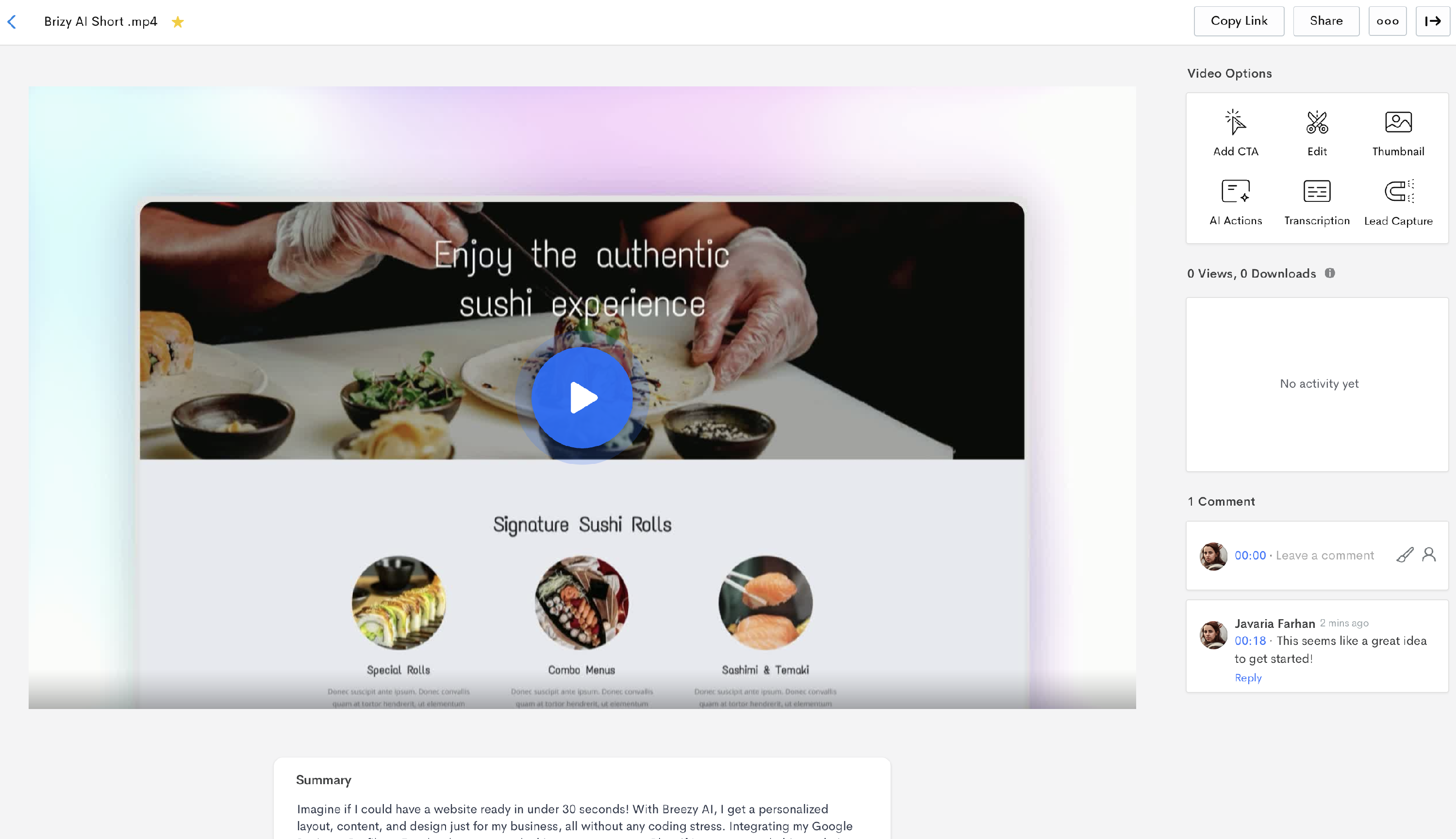
The media player sidebar
When you finish recording, our screen recording software generates a shareable link that opens into an interactive media viewer. This sidebar contains three primary control tabs:
Video Editing & AI Tools
- Trim or merge clips: Cut out unwanted sections or combine multiple recordings to keep your video message short and engaging.
- Add a Call to Action (CTA): Drop a clickable CTA button over the video to redirect viewers to calendar bookings or websites.
- Create a video thumbnail: Design a custom static or GIF thumbnail that gives your audience a preview before they click. You can also embed it on your website to make your page more striking.
- Turn recordings into actions: Turn your video recordings into summaries, task lists, or email copy with our built-in AI content assistant.
- Add transcription: Generate automatic closed captions and text transcripts in over 50 languages.
- Collect leads: Require viewers to enter their email addresses before or after watching your recording.

Analytics toolbar
Get instant tracking insights to see how your recorded videos perform:
- Check the total number of views and downloads.
- Monitor exactly when a viewer opens your link, who watches it, and their geographic location.
For a deep dive into view tracking, geography metrics, and download stats, check out our full Analytics Help Document

Comments section
Collaborate with your team or clients directly next to the video timeline:
- Leave timed comments: Add precise text feedback at specific timestamps or draw annotations directly onto the video frame.
- Mention team members: The video viewer shows in-video comments as well as timed comments in the comment section in the sidebar. Type
@followed by a team member's name to send them an instant notification. - Use guest commenting: Allow clients without a Jumpshare account to leave feedback without signing up.

Privacy & Customization Controls
Manage your video settings and control how your recorded assets are shared:
- Secure your links: Add password protection or set an expiration date for your shared links.
- Disable downloads: Protect your content by turning off the download button on the media viewer.
- Turn off comments: Hide the comments panel for specific video links.
- Add a custom logo: Remove Jumpshare branding and custom logo on the media viewer.
- Upload new versions: Add new versions or view previous versions of the same video without breaking the original link.
- Embed recordings: Copy the embed code to drop your video recordings directly into websites or team documents.

If you need further assistance, don’t hesitate to contact our support team at support@jumpshare.com. We’re happy to help! 🙂