
Enable microphone & camera access for Jumpshare online screen recorder
This guide covers how to allow your browser to access your microphone and camera for our web-based screen recorder. The recorder works on Google Chrome, Microsoft Edge, and other Chromium-based browsers. The steps below will remain roughly the same regardless of which supported browser you use.
You do not need to grant mic and camera access to use the web recorder, but without it, you will only be able to record your screen.
You should see a permissions pop-up the first time you launch the online screen recorder. If you missed this pop-up or accidentally chose to block permissions, the following is what you need to do to grant access.
How to allow microphone and camera access on Chrome
1. Click the View site information icon at the far left of the address bar.
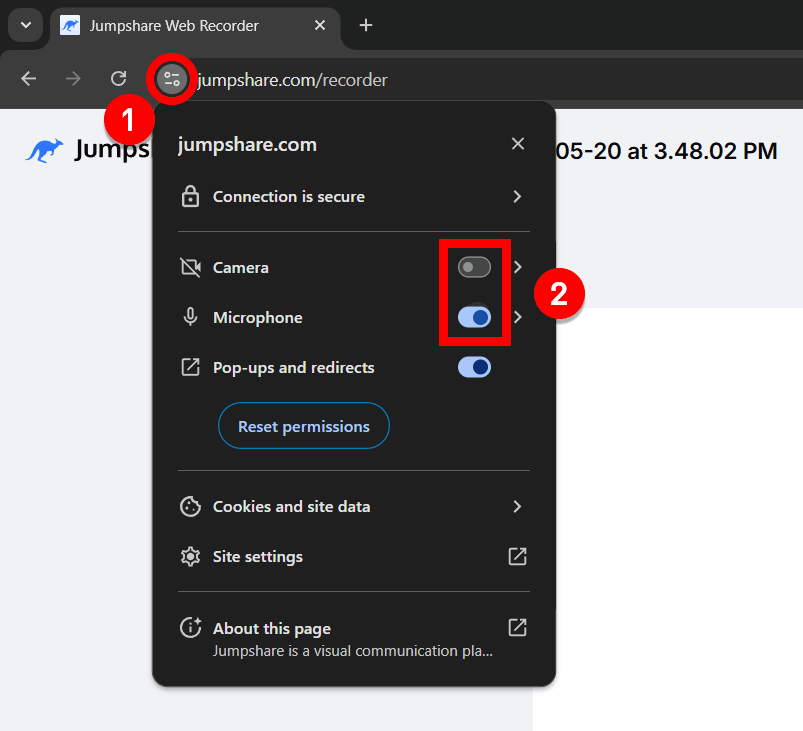
2. In the site settings pop-up that appears, click the toggles to the right of the Camera and Microphone options.
3. Click the Camera and Microphone icons in the recording controls at the bottom of the page. You should now be able to see your camera inside the canvas and record your voice.
How to allow microphone and camera access on Edge
1. Click the View site information icon at the far left of the address bar.
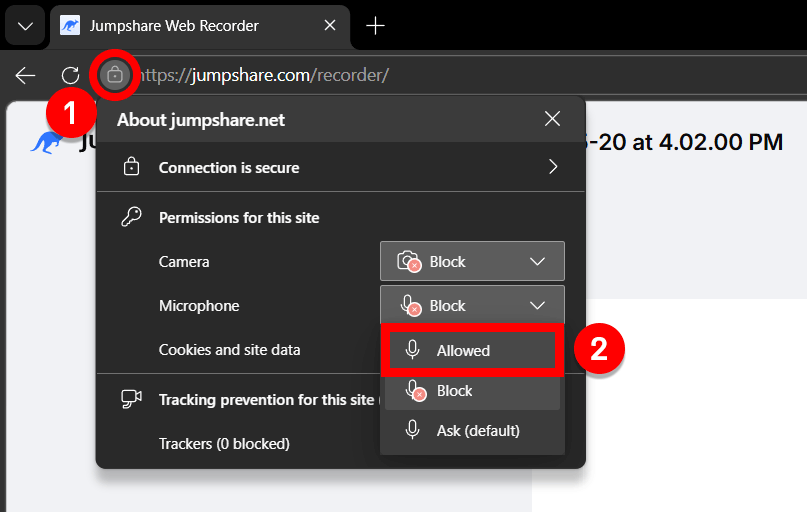
2. In the site settings pop-up that appears, open the dropdown to the right of the Camera and Microphone options and select Allowed.
3. Click the Camera and Microphone icons in the recording controls at the bottom of the page. You should now be able to see your camera inside the canvas and record your voice.
Still having trouble enabling camera or microphone access in our online screen recorder? Drop us a line at support@jumpshare.com . We’ve got you covered.