
How Jumpshare Request works
Find out how your clients, team members, and external creators can send you screen recordings, videos, and project assets without needing a Jumpshare account.
The Jumpshare Request feature (formally known as Jumpshare Inbox) is designed for seamless external collaboration. It provides a quick, secure way for clients, contractors, or customers to upload video recordings, creative assets, and files directly into your workspace. No sign-up required!
Request Types
To keep workflows clean and easy to understand, you can create two distinct types of requests:
- Recordings: Recipients can record their screen or webcam directly using our online screen recorder. No installation needed.
- Files: Recipients can upload documents, media, or project assets directly into your workspace.
How to Create a Request
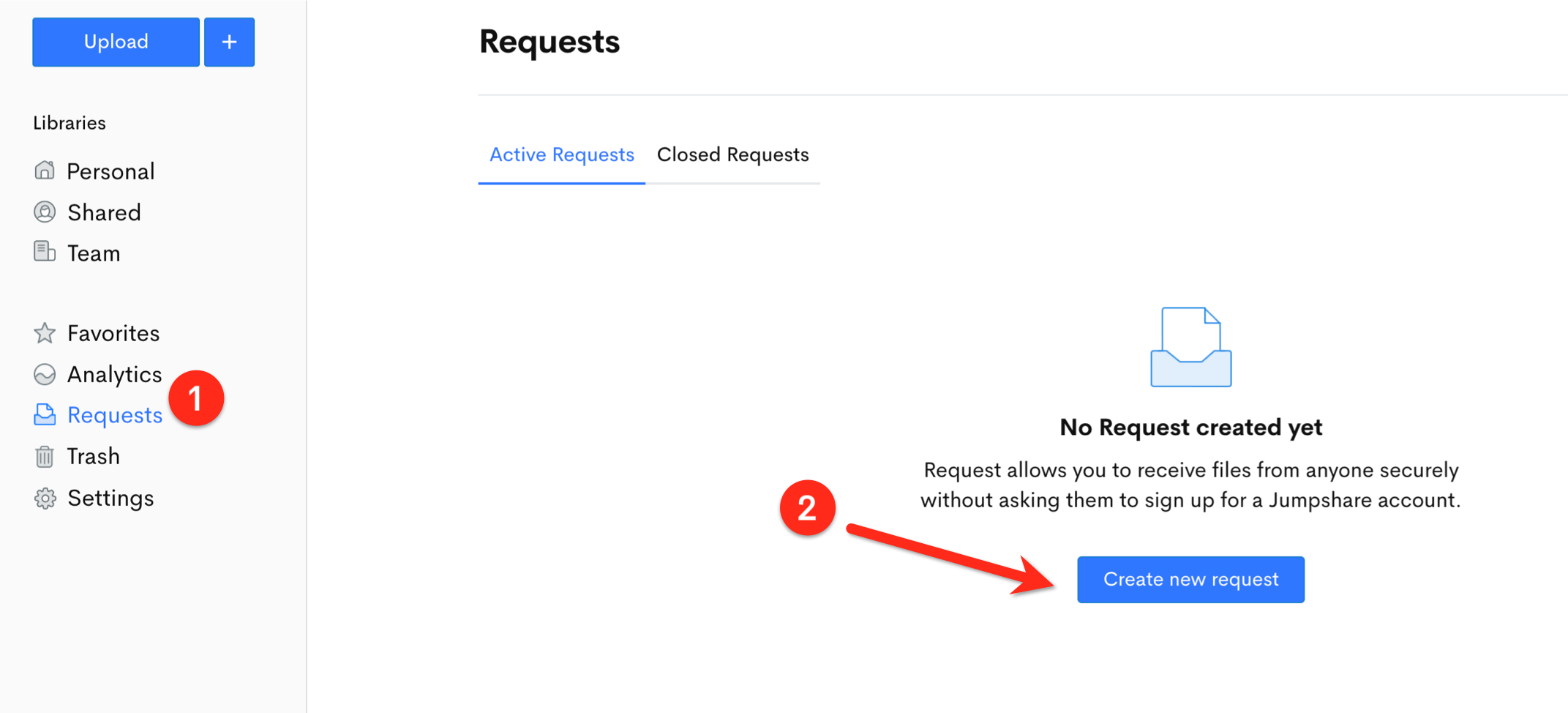
- Open the Jumpshare web app.
- Navigate to Requests in the left sidebar.
- Click on the blue Create Request button.
- Select your request type: Recording or File.
- Name your request (e.g., after a specific client or project) and choose the destination folder in your Personal or Team library.
Advanced Request Settings
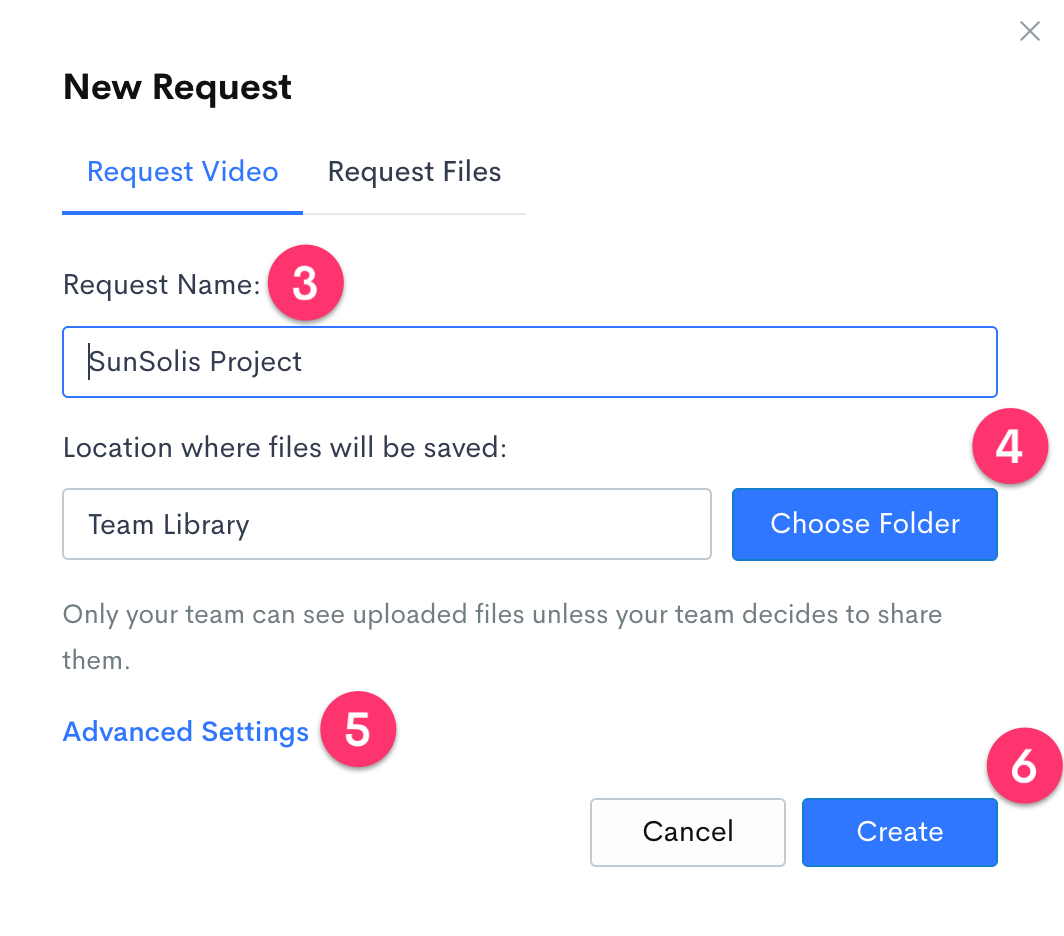
When creating or editing a request, you can configure advanced settings to customize recipient access and workflow:
- Submission limit: Limit the total number of videos or files that can be submitted via the link.
- Submission notifications: Receive instant email updates whenever new content is added via your link.
- Maximum recording length: Cap the duration of recipients' video recordings.
- Disclaimer: Display a custom privacy or copyright disclaimer to submitters before they record or upload.
- Set Expiration: Automatically disable the request link after a set period.
Share a Request
- Head to Requests on the Jumpshare web app.
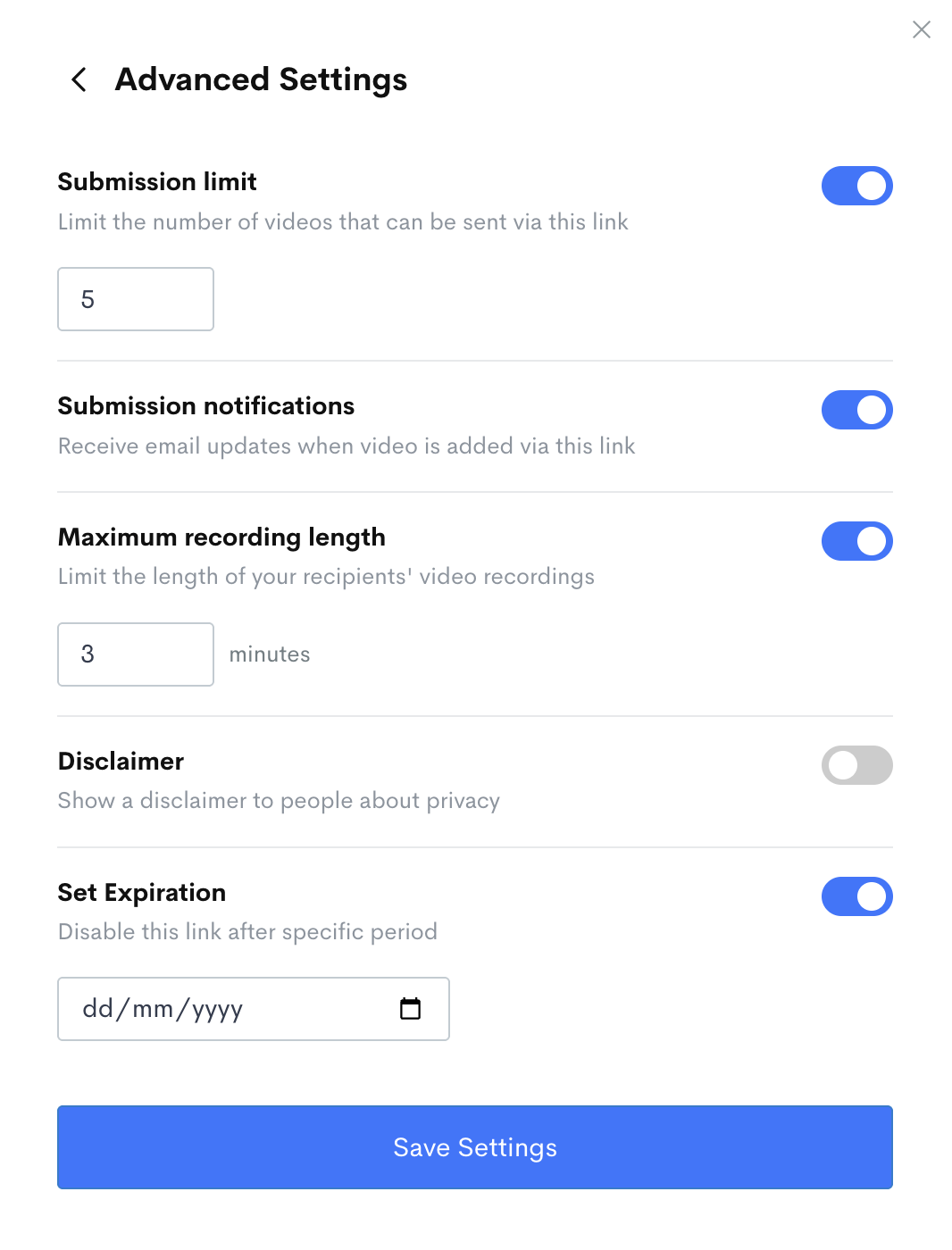
- Locate the request link you want to share and click Share.
- Choose your preferred sharing method:
- Via Link: Copy and share the direct request link.
- Embed Request: Copy the embed code to add a request widget directly onto your website.
- Via Email: Send a direct request email with a custom message.
How Recipients Send Recordings (Online Screen Recorder)
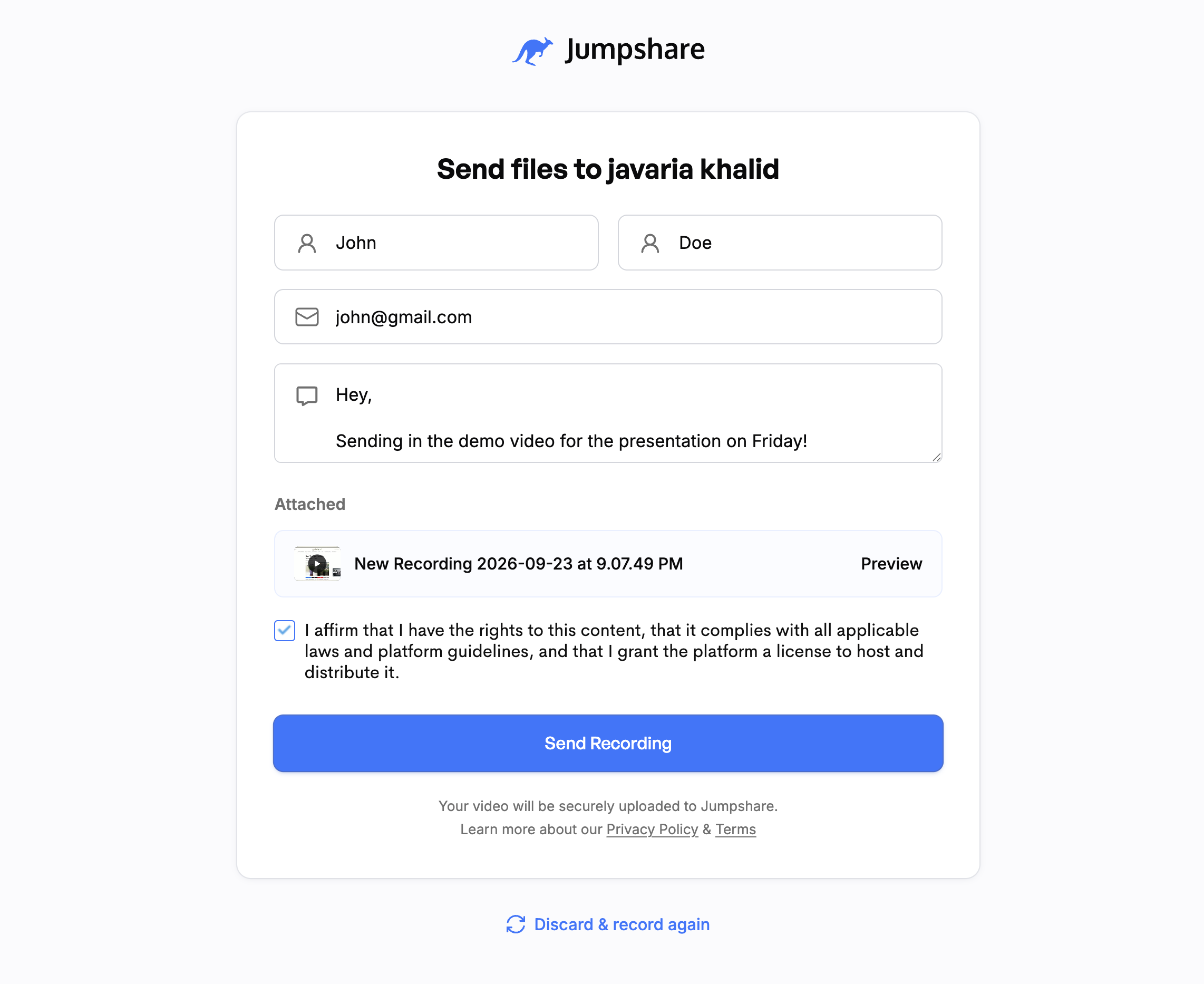
Recipients opening a Recording request do not need to install software or register for an account. They can create and submit screen or webcam recordings directly from their web browser using Jumpshare’s built-in online screen recorder.

Workspace Submission Limits
You can create unlimited request links across all plans. Limits apply only to the total number of monthly submissions received by your workspace.
Free Plan: 5 submissions / month
Plus Plan: 20 submissions / month
Business Plan: 100 submissions / month
Enterprise Plan: Unlimited submissions / month
- How Submissions Are Counted: The limit is based on the number of submission events (the total number of times files or videos were submitted to your request links), rather than storage capacity or the total count of individual files inside a folder. For example, if a client uploads 5 files in a single transfer, it counts as 1 submission event.
- Monthly Reset: Once your workspace reaches its monthly submission limit (e.g., 100 submissions on the Business plan), new incoming submissions are paused until your monthly billing cycle resets.
Integrations & Notifications (Slack & Zapier)
Stay updated on client submissions wherever your team works:
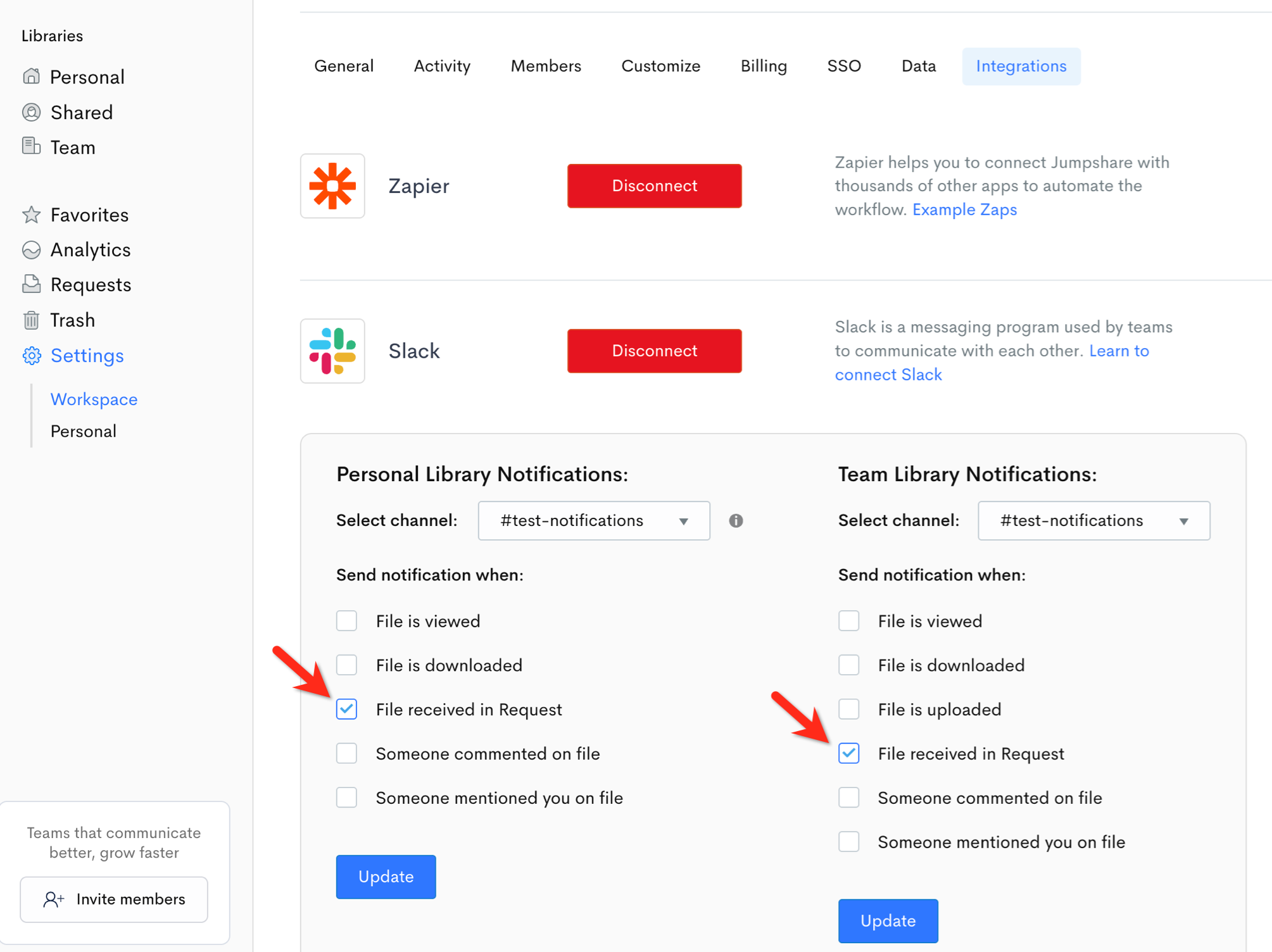
- Slack Integration: Enable real-time submission alerts directly in your team's Slack channels.
- Zapier Integration: Connect Jumpshare Request to thousands of apps via Zapier to automate workflows upon new file submissions.
Viewing & Managing Received Submissions
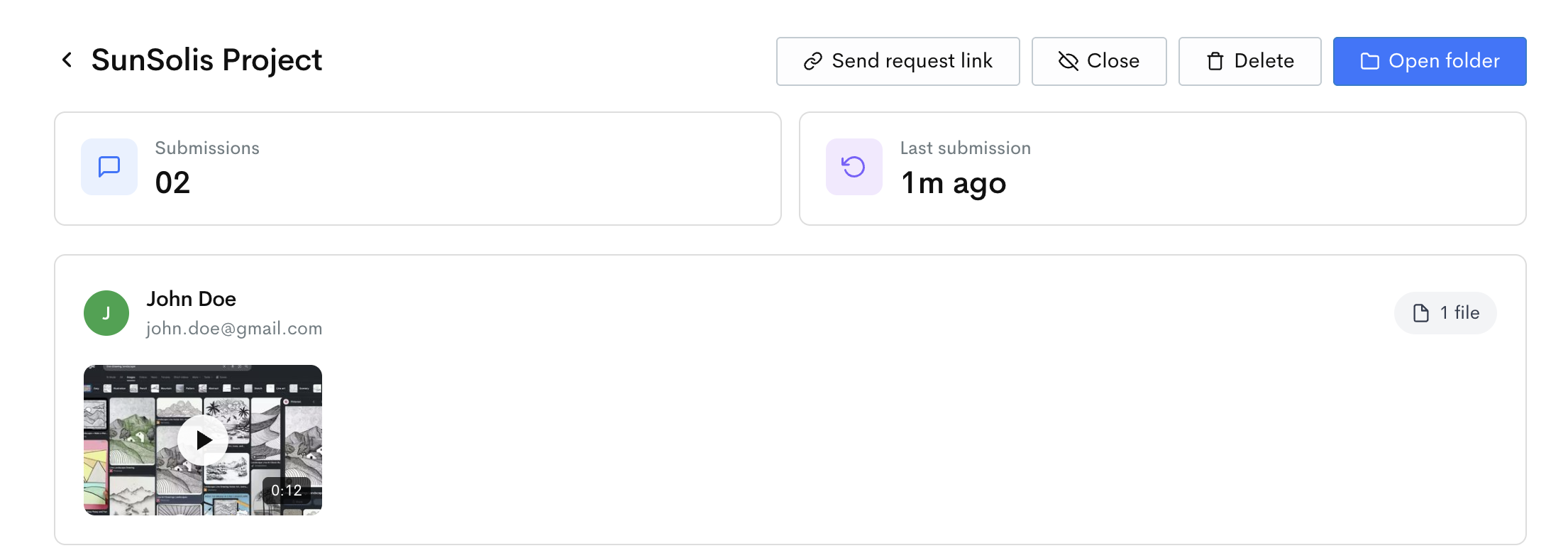
- Go to the Requests section in the web app.
- Click on the active request to view its dedicated destination folder and inspect submitted files.
- You will also receive notifications via email, your Jumpshare Activity feed, Jumpshare Desktop apps and connected Slack channels.
Closing, Re-opening, or Deleting a Request
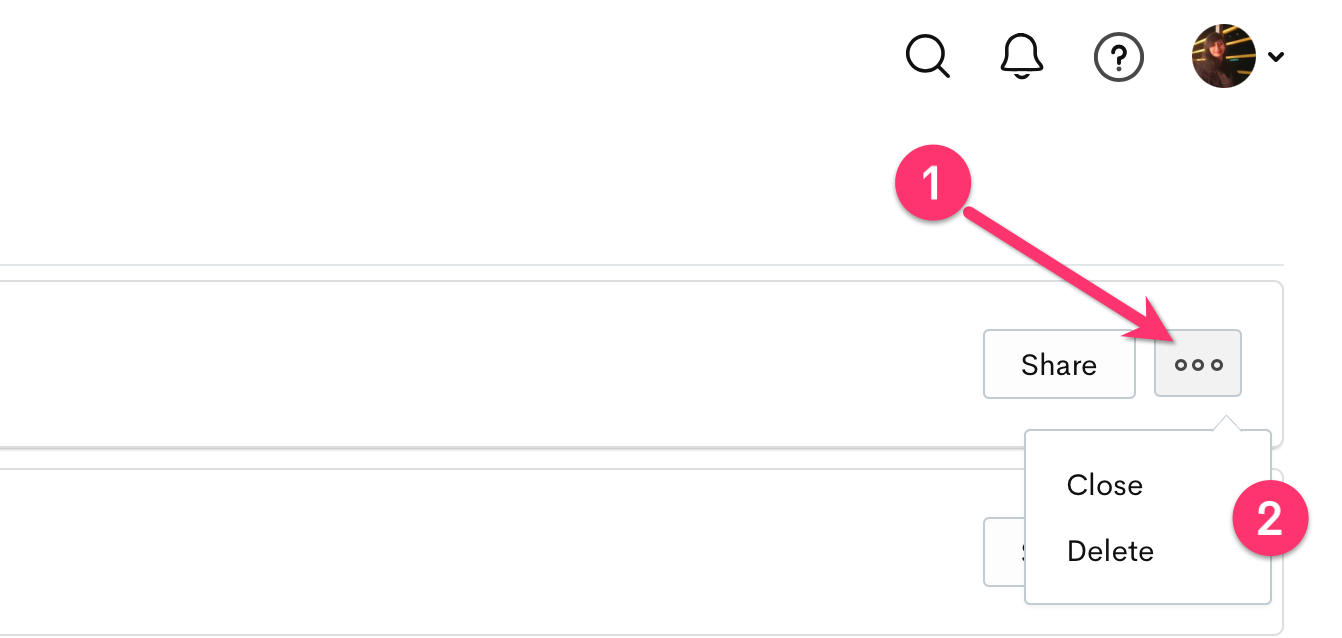
- Close/Open: Click the three dots (...) next to any request link and select Close to pause incoming submissions. Re-open it anytime from the Closed Requests tab.
- Delete: Click the three dots (...) and select Delete.
📌 A deleted inbox can never be restored.
If you have any questions or need help setting up Jumpshare Requests, please reach out to our support team at support@jumpshare.com. We’re happy to help! 🙂